How to Build and Publish a Website with ChatGPT Sites

Hashan Wickramasinghe8 min read
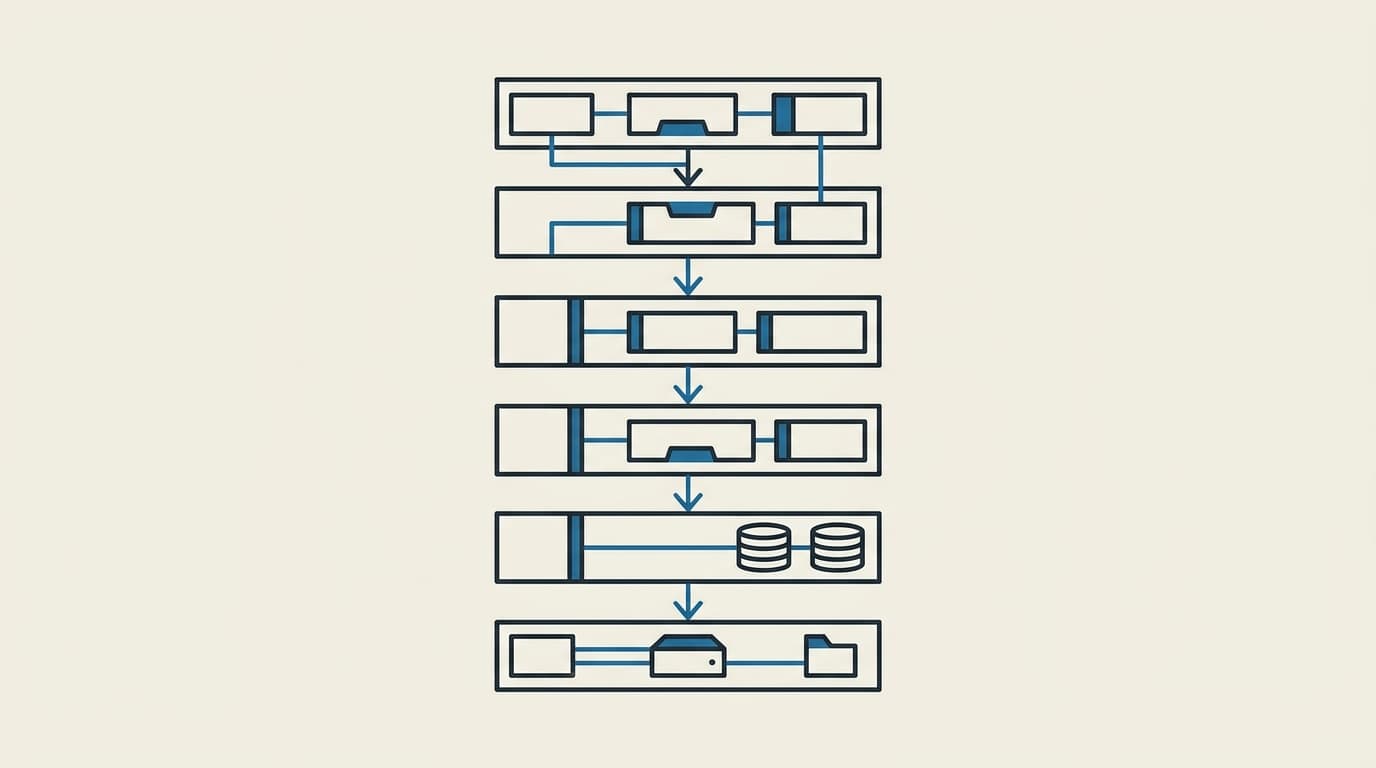
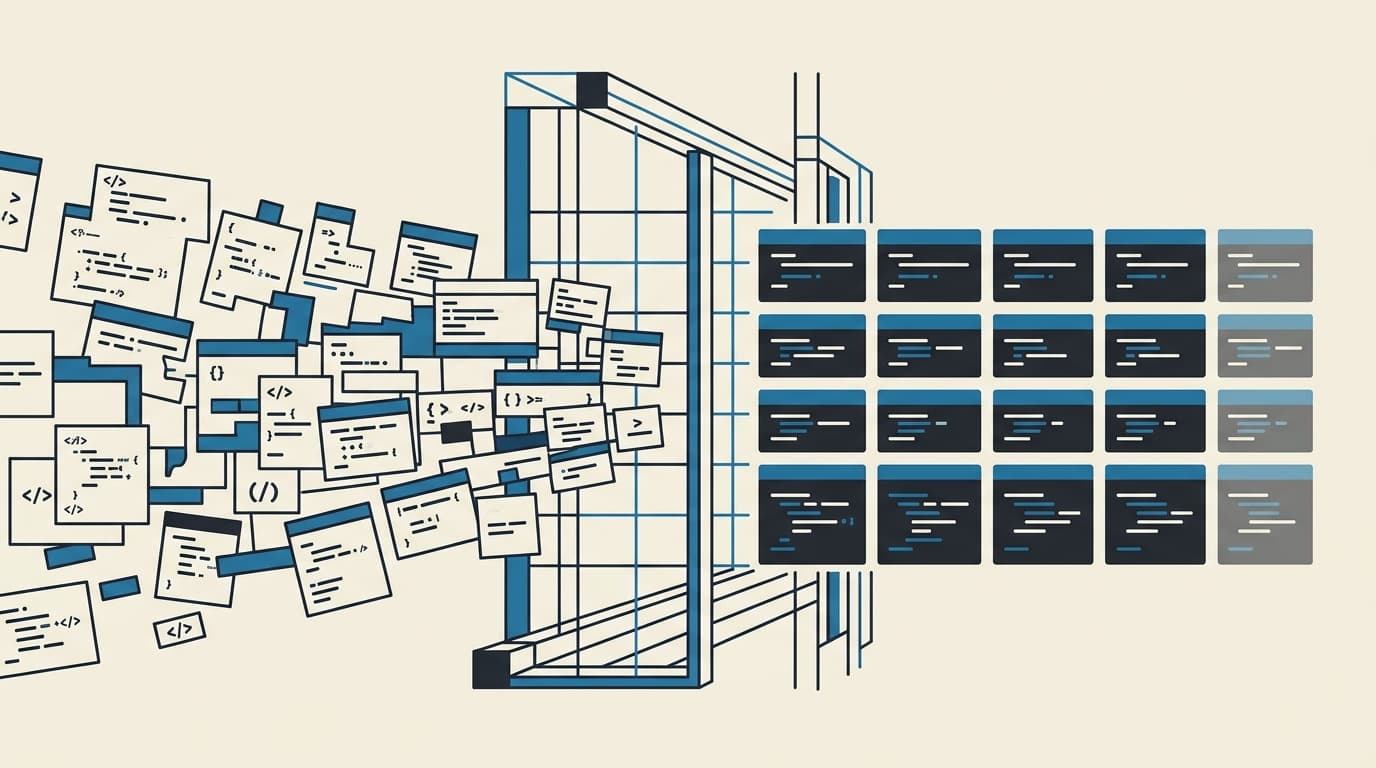
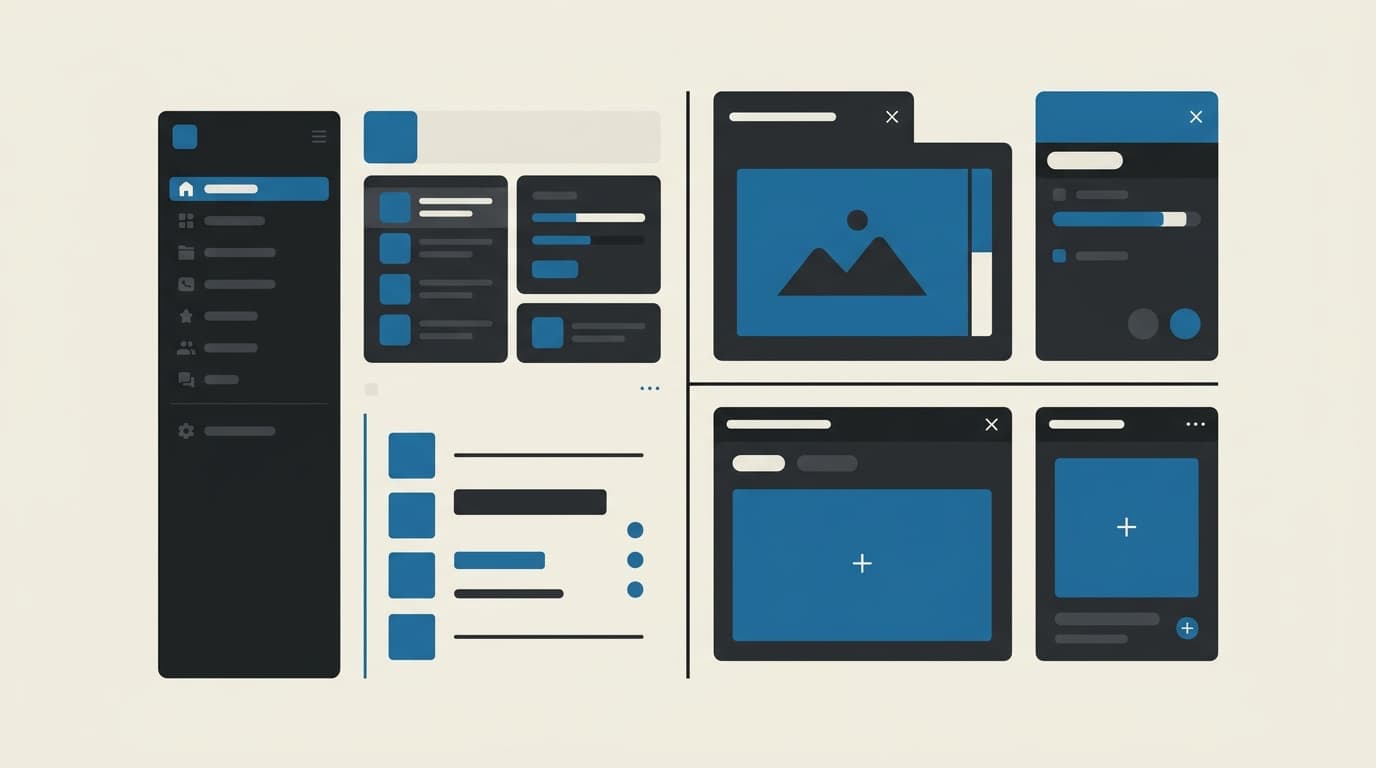
Abstract illustration of a website assembling itself from a single sentence prompt, in warm cream, charcoal, and brand blue

A website used to mean a developer, a domain, a hosting bill, and a month of back and forth. ChatGPT just compressed that into a single sentence.

Ask it for a site and it builds the whole thing from a plain English description, including the pages, the layout, the hosting, and a live link. You don't need a designer, a developer, or any coding knowledge. OpenAI calls it ChatGPT Sites. It landed in public beta in July 2026, and in a few short weeks I've watched it go from party trick to a tool worth building on. This tutorial walks through the exact workflow, the prompts, the settings that matter, and the limits that will save you a wasted weekend.

By the end of this post you can have a real website, published and live. I don't mean a mockup or a design file.

What you need before you start

  • A paid ChatGPT plan. Sites runs on Plus, Pro, Business, Enterprise, or a team workspace. Free accounts can't create sites. During the beta it also isn't available in every region yet. If you don't see it in your app, that's likely why.
  • The ChatGPT desktop app. The web version has Sites too, but the desktop app carries the full feature set. It's the version I'd start with.
  • One sentence. That's the minimum. The rest of this post is about making that sentence go further.

Step 1: Open Sites

Open the desktop app and you'll see a Sites section in the left sidebar. That's where your published sites live, ready to edit or share.

The setup takes four steps.

  1. Open a new chat.
  2. Switch to Work mode, OpenAI's workspace for getting things done.
  3. Type @ in the prompt box and search for Sites.
  4. Select Build and deploy websites with Sites.

From there, the entire job is describing what you want. The tool does everything else.

Step 2: Describe the site

The first build that sold me on this was a landing page for a community, a page that gives people a reason to join before they hit the signup form. Here's the prompt that started it.

Build a production-ready single-page landing page for our free community.

That bare prompt gets you a working page. But the difference between a working page and a page that looks like your brand comes from what you give it alongside the request. The trick is a brief plus your assets. The brief laid out the page structure, a hero, the main benefit, a credibility strip, an FAQ, a call to action. The assets folder carried the real logo, fonts, headshots, client logos, and the design style guide.

The result was a landing page that matched the brand exactly. The next live workshop date was pulled in automatically from the community platform. The numbers were real data, not placeholder text. That's the pattern to copy.

  • Brief first. Tell it the structure and the behavior you want. For example, "when someone enters their email, send them to the signup form."
  • Assets second. Logo, fonts, style guide, real photos. It uses them, and that's what makes the page look like yours.
  • Test the flow. Click through the finished page the way a visitor would. In the demo, entering an email landed exactly where it was supposed to.

The gap between "a page" and "your page" is the brief you give it.

Step 3: Publish, and put it on your domain

Every site ships with hosting built in. Create it, and ChatGPT hands you a live link on a chatgpt.site address. That alone is the whole publishing pipeline. You skip file transfers, domain wrestling, and the "works on my machine" problem entirely.

Want it on your own domain? The Sites settings include a custom domain option, and the demo site runs on its owner's own domain while everything underneath stays on ChatGPT's infrastructure. You never touch a server. That landing page is live right now, with real people signing up through it every day. That alone sold me.

Step 4: Choose who can see it

Every site has a share setting, and this is the one to get right early. There are three levels.

  • Only those invited. You pick exactly who sees it. Right for a board deck or a sensitive internal report.
  • Anyone in your workspace with the link. Visible to your whole team. Right for internal dashboards everyone should see.
  • Anyone on the internet. Public. Right for landing pages and customer facing content.

Internal numbers stay internal, public pages go public. Thirty seconds of thought here saves you from explaining later how an internal dashboard ended up public.

Step 5: Point it at live data

This is where Sites stops being a toy. The second build I walked through was a dashboard showing how a YouTube channel was performing, with views, watch time, subscriber growth, and a breakdown for each video. The inputs were an image of a dashboard the team liked, plus a connection to the data source where the numbers actually live.

The result was a working reporting dashboard, refreshed from real data, built from one prompt. That same request used to mean a ticket to a BI team and a few weeks of waiting, then the same wait again every time you wanted something changed. Here, updating it is a sentence.

If your business runs on spreadsheets, a data warehouse, or an analytics tool, this is the pattern to try first. Dashboards you can actually share, without asking anyone for help.

Step 6: Build a real app

The one that surprised me most was a small web app with logins. The demo was a receipt inbox. Photograph a business expense on your phone, and the app reads the receipt, pulls out what your accountant will need at tax time, files it under your account, and exports everything to a spreadsheet at year's end.

Under the hood, that means three things.

  • A database for each user. Each user's data stays separate from everyone else's.
  • Secret keys stored safely. The app uses an AI service to read receipts. That service needs an access key, which ChatGPT calls an API key. Think of it as a private badge that lets the app use the service. The key lives in a settings drawer marked "secret," so visitors never see it.
  • Analytics included. Every site tracks visitors, page views, and top pages automatically.

The honest catch is that users log in with their ChatGPT account. There's no "create an account with your email" option yet. That's fine for a team tool, but it matters before you plan a product for customers.

What it can't do yet (so you don't lose a weekend)

  • No payments. This is a hard rule from OpenAI. Sites can't process payments, so it isn't a Shopify replacement. Don't spend a weekend trying to make it one.
  • Logins are tied to ChatGPT. Anyone using your app's login needs a ChatGPT account of their own.
  • It's a public beta. Usage, storage, and traffic are included up to plan limits, and limits can tighten as the beta evolves.
  • Focused sites, not sprawling products. OpenAI's own guidance is direct. A site suits a focused internal tool, dashboard, or calculator. A more complex product still needs a proper engineering project.

Where it fits best

The biggest win, in my view, is internal. Think dashboards, trackers, launch calendars, internal portals, the stuff that used to queue behind engineering tickets. Teams that put those in ChatGPT Sites get the result the same afternoon they asked for it.

Public landing pages and campaign pages are the second sweet spot. The speed of creation is hard to convey until you've watched a full page assemble in minutes.

And if your "website" is mostly a brochure, a clear pitch with some proof and a way to get in touch, a single sentence might be all you need to build it.


That's the workflow. Start with a landing page, keep the brief tight, get the sharing right, and the tool handles the rest. The weekend you were about to spend on a website is free again.

If you'd rather not puzzle out the prompts and settings yourself, book a call. I build this kind of thing for growing businesses, and I'll tell you honestly whether ChatGPT Sites covers what you need or whether you need something more.

The official documentation is at Creating and managing ChatGPT Sites.

Filed under: TutorialChatGPTNo-Code

Work with me

Got a process that's eating your week?

Fixed-scope, fixed-price automation work. We agree what's being built and what it costs — then I build it.

Book a call →