In Part 1 and Part 2 of this series, we examined the foundational architecture of DeepSeek Harness and how to use it as a "Meta-Harness" to power all of your company's AI workflows under one centralized roof.
Once the backend engine and plugin catalog are in place, the deciding factor for team adoption is the User Experience (UX).
A generic chat window is great for asking quick questions, but it is the wrong interface for doing serious business work. If an employee asks an AI to draft a 10-slide presentation, audit an invoice, or summarize 20 customer tickets, dumping 500 lines of plain text into a vertical chat scroll creates immediate cognitive overload.
To make an internal AI hub actually useful, the interface must evolve from a passive text box into an active, direct-manipulation power workspace.
Here is the complete product and UX blueprint for designing a company-wide AI Super App.
1. The layout: the split-pane power workspace
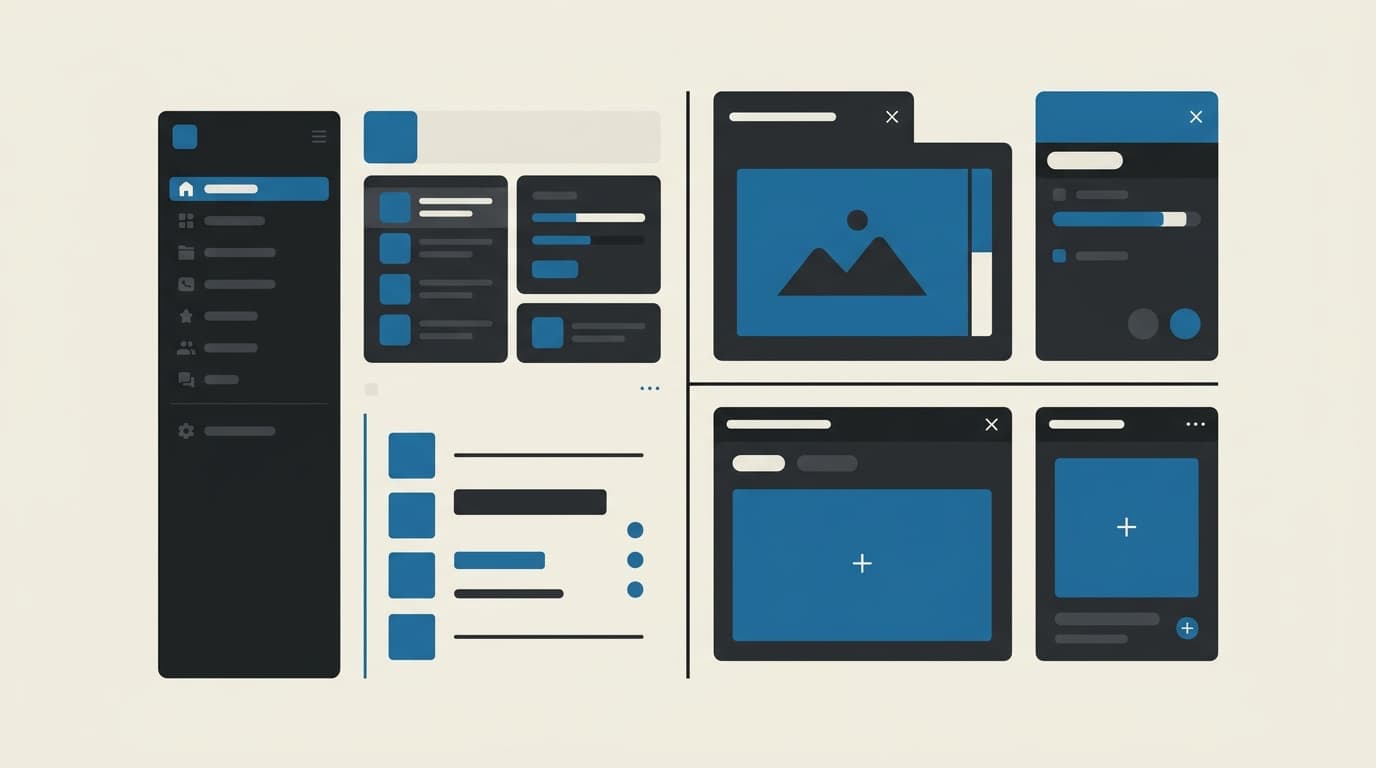
The standard layout for high-productivity AI applications is a Dual-Pane (Chat Steering + Dynamic Living Canvas) workspace.
Instead of forcing text, charts, buttons, and files into a single narrow chat column, the screen is divided into specialized zones:
Why this dual-pane layout works
- Left Sidebar (Context & Navigation): Organizes work by business projects (
Marketing Q3,UX Research,Dev Sync) while providing one-click access to the company's curated App Catalog (SlideGen,DataInsight,WriterAI). - Center Column (Conversational Steering): Dedicated strictly to directing and refining the agent ("Shorten slide 2", "Include regional sales breakdown"). The chat history acts as an interactive steering wheel rather than the final deliverable.
- Right Column (Dynamic Living Canvas): Renders custom, interactive interfaces tailored to the active app. When generating slides, it displays an interactive presentation player; when analyzing invoices, it shows an editable data table; when drafting documents, it renders a rich block editor.
Employees never have to copy-paste raw text into external software just to see what the finished product looks like. They can review, tweak, and interact with the output directly on the canvas.
2. The context-aware command bar
The prompt bar should understand context before the user even finishes typing:
Key interaction patterns
- Auto-Detect Intent (Smart Routing): If a user types "Compare our Q3 customer churn against last quarter", the input bar automatically suggests or auto-switches to the DataInsight App without forcing the user to manually browse menus.
- Quick Slash Commands (
/): Power users can type/slides,/meeting, or/invoiceto instantly lock the interface into a specialized workflow recipe. - Unified Context Drawer (
@or📎):- Local Files: Drag-and-drop spreadsheets, PDFs, and images directly into the thread.
- Cloud Knowledge: Search and attach live cloud documents (
@GoogleDrive-Q3-Roadmapor@SharePoint-Policies). - Live SaaS Signals: Pull in live business context with a keystroke (
@Linear-Sprint-24or@Slack-#announcements).
3. Dynamic canvases tailored to each business workflow
Instead of forcing every output into plain markdown, each internal app gets a dedicated canvas interface engineered for that specific task:
| Internal Business App | Custom Interactive Canvas Interface |
|---|---|
| Smart Slide Deck Creator | Interactive slide deck previewer with drag-and-drop slide reordering, brand theme pickers, and one-click PPTX and PDF export. |
| Meeting Intelligence | Synced audio player highlighted alongside transcript text, clickable speaker avatars, and an interactive checklist that syncs directly to task boards. |
| Partner & Vendor Vetting | A visual Executive Scorecard: Authenticity Ratings, Red-Flag Risk Matrices, follower growth curves, and an exportable PDF dossier. |
| Living Wiki & Docs Builder | Rich block document editor with automated side-by-side diff comparisons showing exactly what text was added or modified. |
By pairing each workflow with the right visual controls, employees spend their time evaluating results rather than reformatting raw text.
4. Background automations and the "Morning Briefing"
A true business AI hub should not wait passively for employees to start every conversation.
A. One-click prompt automation
From any successful chat session, an employee can click "Automate This Workflow":
"Run this Weekly Planner every Monday at 8:00 AM using last week's Jira tickets and Slack highlights, and send the summary to my direct messages."
B. The personalized morning dashboard
When an employee opens the workspace at the start of their day, the home view presents an actionable Morning Briefing:
- Daily Priorities: Top 3 action items compiled from yesterday's meetings and project updates.
- Pending Approvals: Pre-drafted client follow-ups and status updates awaiting one-click human review.
- Scheduled Digests: Overnight market signals, competitive alerts, or financial summaries ready for review.
5. Dual-axis organization: projects $\times$ apps
In a busy company, team members juggle multiple projects simultaneously. The workspace organizes past work along both axes, so finding it is instant:
- Project View: Gathers every chat, generated slide deck, customer transcript, and uploaded document related to Project Phoenix in one folder.
- App View: Lets a team lead view all Vendor Audit Reports or Slide Decks created across all projects in a single scannable gallery.
6. High-trust UX: built for business confidence
To earn full trust across executive leadership and legal teams, the interface incorporates four transparency patterns:
1. High-visibility action confirmation cards
Whenever an AI app is about to perform an external or permanent action (sending 15 client emails, updating a CRM opportunity, or publishing a document), the canvas displays a prominent Action Confirmation Card:
- Summarizes the exact steps the agent intends to take.
- Provides immediate
[Review Diff],[Edit], and[Approve & Send]buttons. - No real-world action executes without explicit human confirmation.
2. Grounding and citation hover badges
Every factual statement or metric generated by the AI includes a clickable citation badge. Hovering over the badge highlights the exact sentence in the source Google Doc, spreadsheet, or PDF from which the data was retrieved.
3. Shared company playbooks
When a team member builds an effective workflow, they can save it as an official Company Playbook (e.g., "Brand-Safe Client Proposal, Approved Template"), allowing junior staff to produce consistent, high-quality deliverables immediately.
4. Smart model and cost indicator
A subtle footer indicator shows which model is executing the task and confirms data protection status:
⚡ DeepSeek V4-Flash • Zero Data Retention Shield Active
The complete product vision
By pairing a modular backend harness with a purpose-built dual-pane UX, you give your team:
- The conversational familiarity of a modern chat assistant.
- The direct-manipulation control of an interactive living canvas.
- The customized power of a company-specific App Store built around your daily operations.
If you are ready to design and deploy a centralized AI workspace tailored to your business operations, book a call.